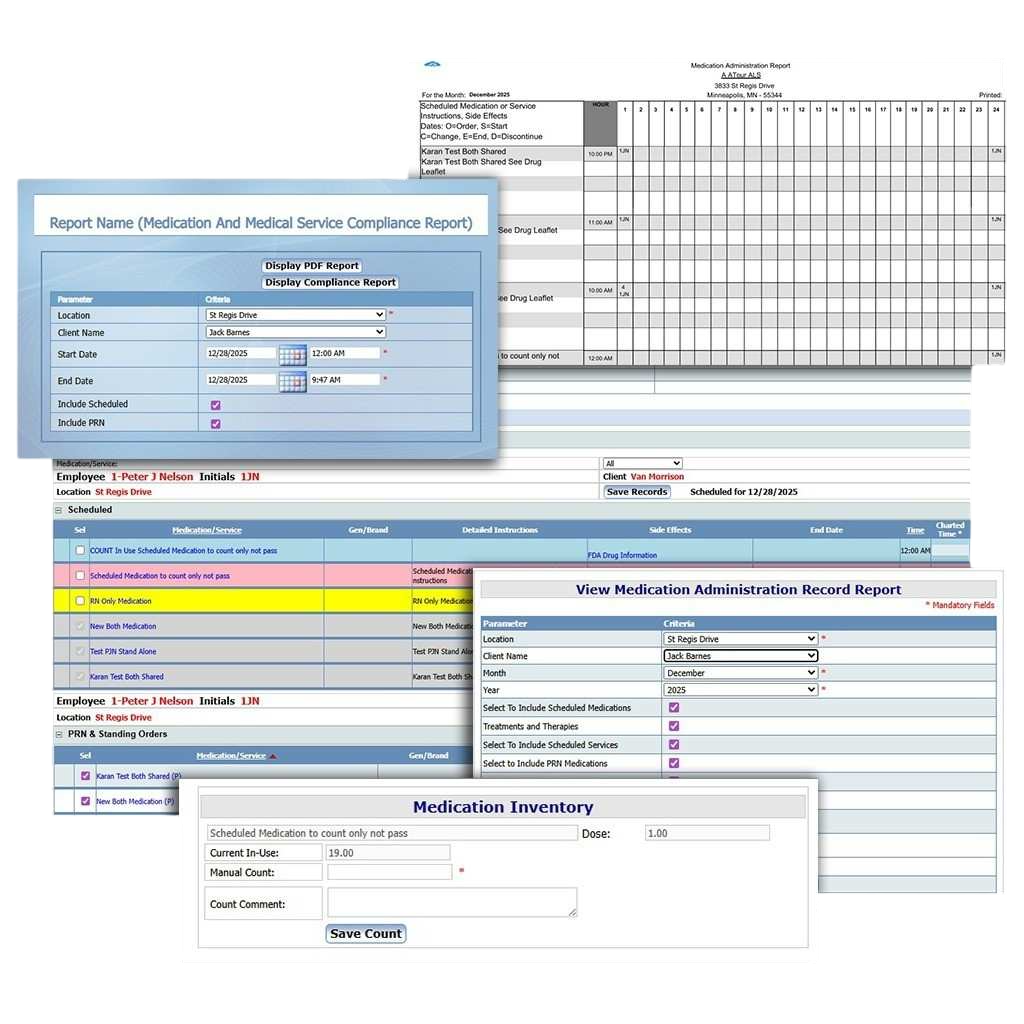
Adaptive’s Progress Reporting brings together Scheduled Direct Care, program objectives, summary notes, and compliance checkpoints into a single, printable report—aligned to your organization’s ISP or calendar year settings.
Configure Once, Report Reliably
Company‑level setup
Add reusable header/footer text blocks for signatures and attestations, choose whether to print the client’s Medical Record ID (PMI/Assist ID), and set custom labels used across Program Analysis columns.
Program coordinator on every report
Designate the oversight role (e.g., QIDP) so the coordinator’s name prints consistently on all Progress Reports.
Flexible reporting periods
Support ISP year and calendar year simultaneously—even for the same client enrolled in multiple programs. Handle short or changed ISP years without losing continuity.
Build Programs & Objectives That Staff Can Actually Chart SERVICE CHARTING
Company & Client Libraries
Create services/objectives once at the company level, then publish to client libraries for charting. Each service captures Need/Outcome, objective numbers, desired results, and optional rate fields; you can exclude items from Progress Reports while still allowing staff to chart them (e.g., training or trial items).
Scheduled Direct Care
Mark items as Direct Care or Health Care and flag whether they can be scheduled; charting on these items feeds your Progress Report automatically.
Patients Served
0k+
Enter Notes, Then Run The Report
Summary notes workflow
Add reporting‑period summary notes before running reports to capture outcomes, barriers, and plan adjustments.
One‑click report execution
From the client’s Periodic Reports area, manage ISP/calendar periods, add/edit notes, and print Progress Reports (alongside Health Care and Medication Error reports when needed).
Late Charting Reminders keep periods complete
Automated LCRs
Configure reminders to surface missing Progress Notes (“NOT”), Scheduled Direct Care charting, medication PRNs, and other items. LCRs pop up on staff homepages and link directly to the correct charting page.
Absence‑aware settings
Suppress LCRs when a client is checked out via Occupancy, so staff aren’t chased for charting that shouldn’t occur.
Analyze outcomes across your organization
Dashboard → Progress Report Analysis
Drill down from Company → Location → Client → Need/Outcome → Program/Objective → Task, with quick access to underlying charting records. Neutral entries (excused/not offered) are filtered out for precise progress scoring.
Integrates with Health Review & Medication Error visibility
Aligned periods
Health Review produces reports for the same periods as Progress Reports, pulling from Medical Service/Segregated Services charting. Medication Error visibility can appear from Progress Report timeframes when needed.
Role‑Based Control & Compliance
User Roles
Limit who can maintain reporting calendars vs. who may add/edit notes and print reports. Provide read‑only options, verify reads, and restrict management of sensitive functions to designated staff.
Patients Served
0k+
Key Benefits
Outcome clarity
Objectives and results are organized and printable for audits, funding reviews, and family/guardian updates.
Data integrity
Period management, summary notes, and LCRs keep reports complete and defensible.
Operational visibility
The dashboard gives leaders a multi‑level view into program performance without exporting or stitching data.